Creating Your Organization
After creating your account, the next step is to set up your organization in JobRoutr. This is where you'll manage your company information and billing details.
Overview
The organization setup process includes 5 steps:
- Create Organization (Current Step)
- Connect QuickBooks
- Build Service
- Configure Email
- Invite Team
Create Organization Form
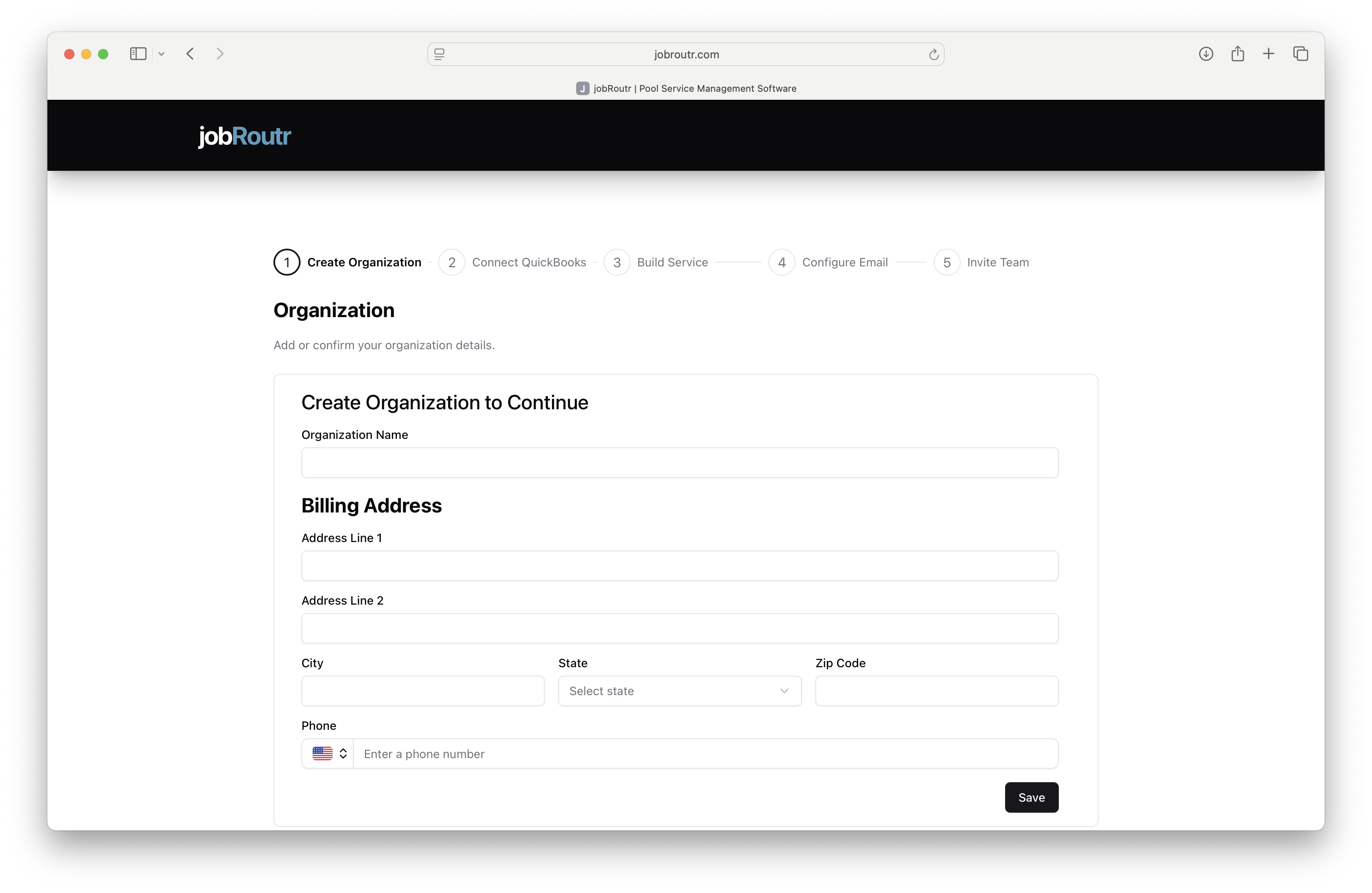
Steps to Create Your Organization
1. Organization Name
Enter your company or organization name in the Organization Name field. This will be displayed throughout the system and visible to your team members.
Best Practices:
- Use your official business name
- Avoid abbreviations unless commonly used
- Example: "Blue Circuit"
2. Billing Address
Complete all billing address fields to ensure accurate invoicing and service delivery.
Address Line 1
Enter your primary street address or building number.
- Example: "123 Main Street" or "Suite 200, 456 Business Blvd"
Address Line 2 (Optional)
Add additional address details if needed:
- Suite or apartment numbers
- Building names
- Department information
City
Enter the city where your organization is located.
State
Select your state from the dropdown menu. This field is required for proper tax and billing purposes.
Zip Code
Enter your 5-digit or 9-digit ZIP code.
3. Phone Number
Enter your organization's primary contact phone number.
Features:
- Country code selector (defaults to US)
- Formatted input for easy reading
- Used for important notifications and support contact
Tips:
- Use your main business line
- Ensure this number can receive calls during business hours
- Format example: (555) 123-4567
4. Save Your Organization
Once all required fields are completed, click the Save button to create your organization and proceed to the next step.
Required vs Optional Fields
Required Fields ✓
- Organization Name
- Address Line 1
- City
- State
- Zip Code
- Phone Number
Optional Fields
- Address Line 2
What Happens Next?
After saving your organization details:
- Your organization profile is created
- You'll be directed to Step 2: Connect QuickBooks
- Your billing information will be stored securely
- You can update these details anytime from Settings
Common Issues
Can't Find Your State?
If you're located outside the US, contact support at support@jobroutr.com for assistance with international setup.
Need to Change Information Later?
You can update your organization details at any time:
- Navigate to Settings > Organization
- Edit the required fields
- Click Save to update
Tips for Success
- Accuracy Matters: Double-check your billing address for accurate invoicing
- Business Phone: Use a phone number where you can be reached during business hours
- Legal Name: Use your official business name as registered with your local authorities
Next Steps
After creating your organization, you'll move on to:
- Connect QuickBooks - Integrate your accounting software
Need Help?
If you encounter any issues while creating your organization, contact our support team:
- Email: support@jobroutr.com
- Help Center: help.jobroutr.com